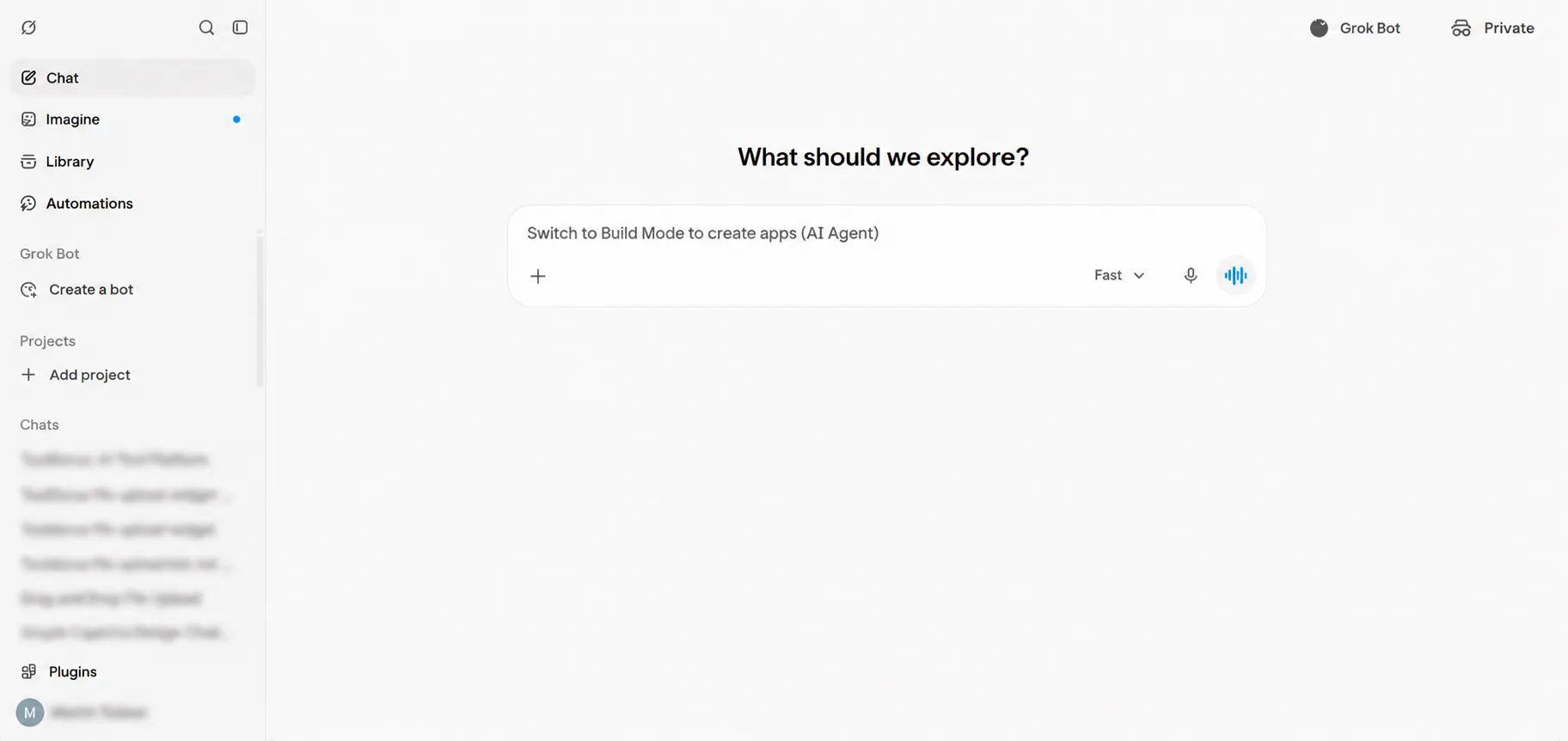
1. Open Grok
Open Grok and locate Plugins in the left sidebar.
2. Open the connector catalog
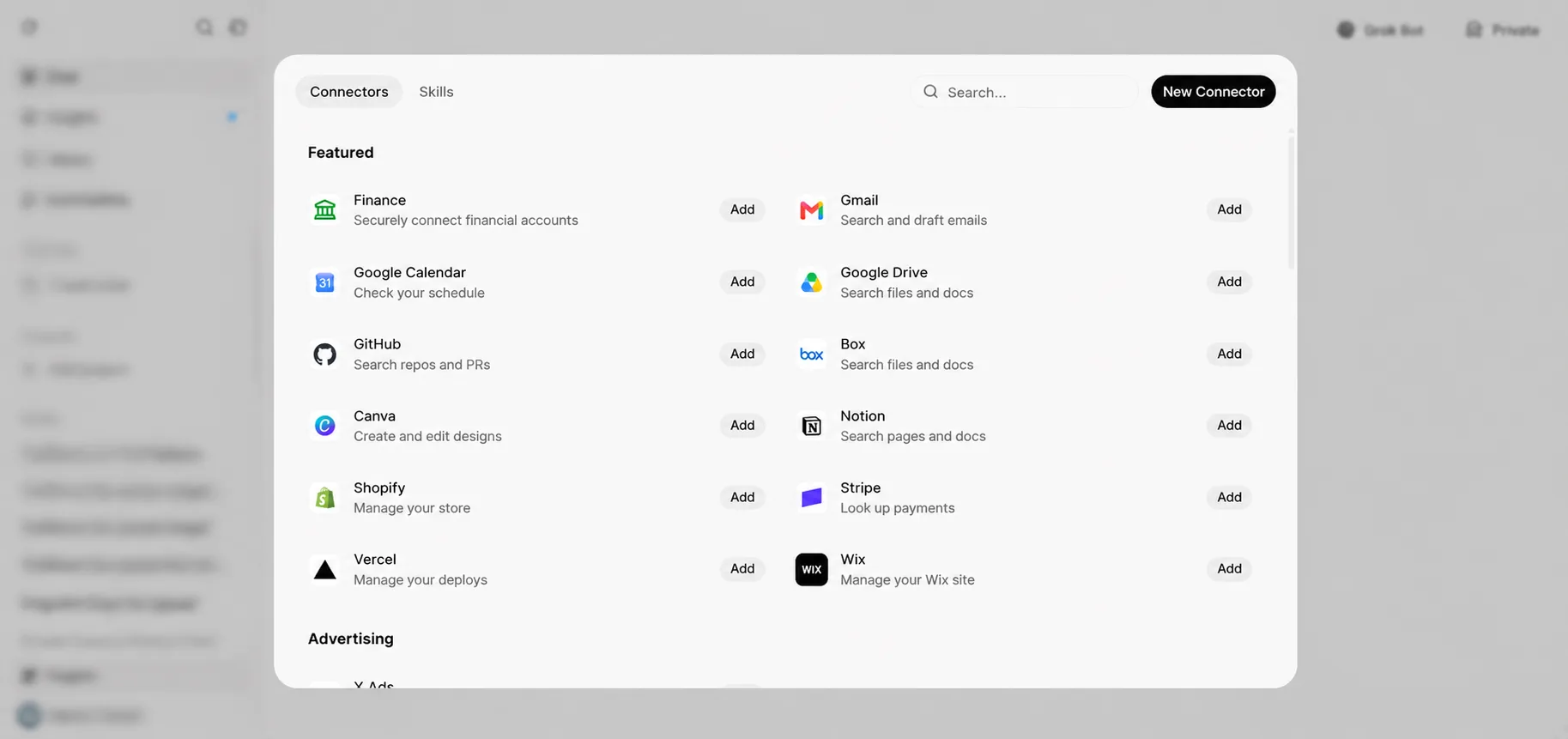
Open Plugins to view available connectors. Choose New Connector.
3. Choose a custom connector
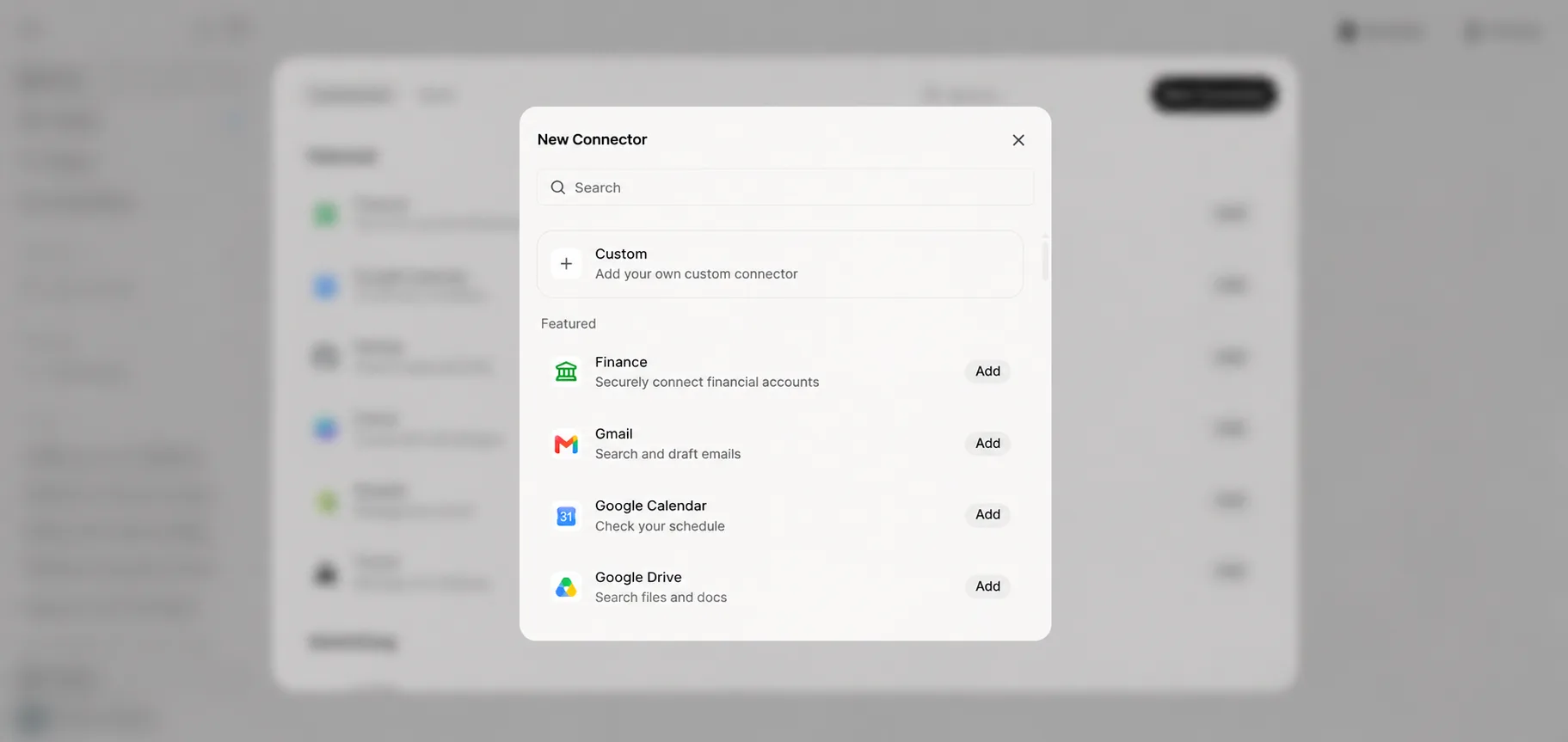
In the New Connector dialog, select Custom to add your own MCP server.
4. Confirm ToolDurus is connected
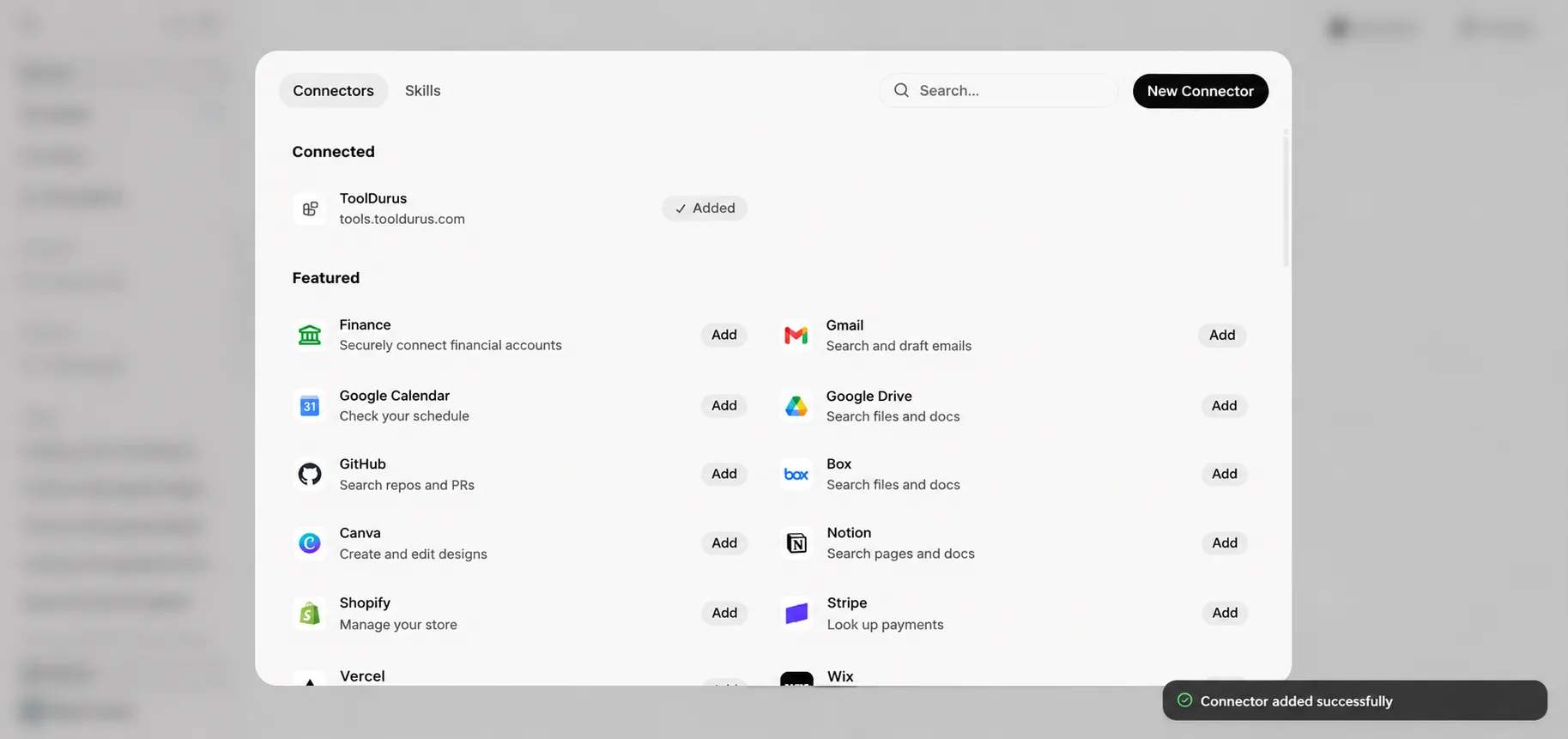
Complete the connector setup using your personal ToolDurus MCP server URL from your ToolDurus account. Confirm that ToolDurus appears under Connected with the Added status.
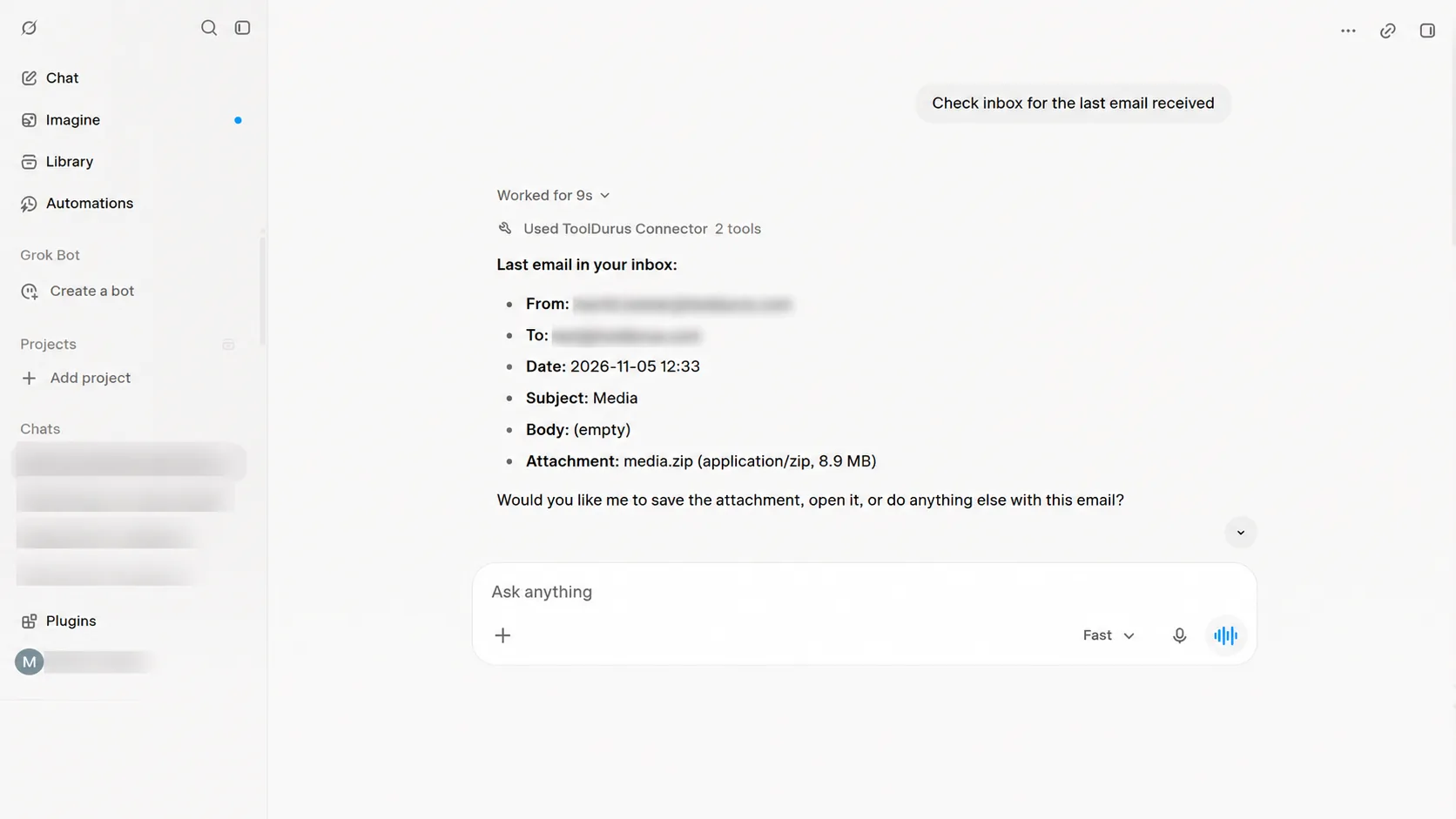
5. Test the connector with email
Ask Grok to check the latest received email. In this example, Grok retrieves message metadata and reports a ZIP attachment.
6. Inspect a ZIP attachment
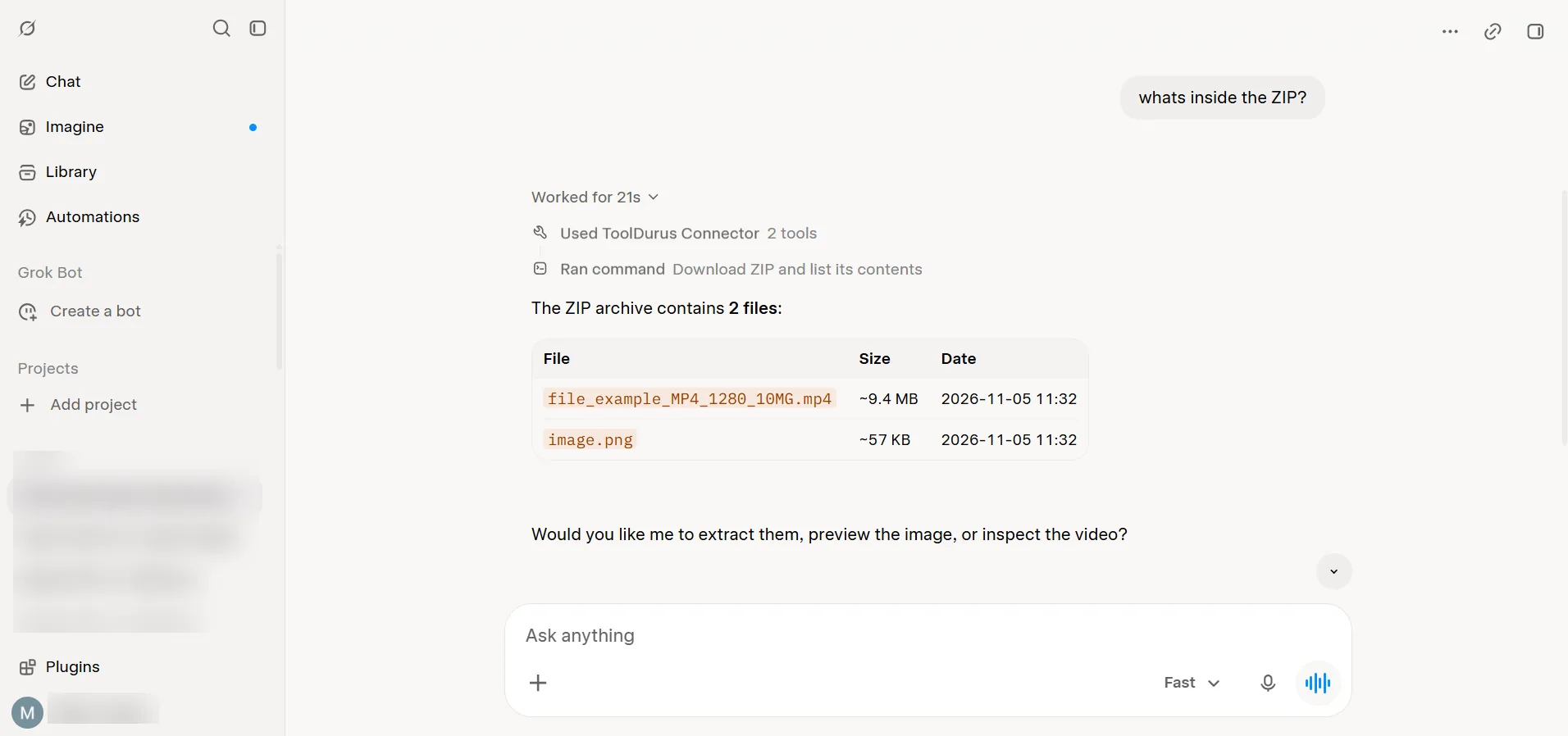
Ask what is inside the ZIP. Grok uses ToolDurus tools to inspect the archive and list the contained files.
7. Edit a video using ToolDurus
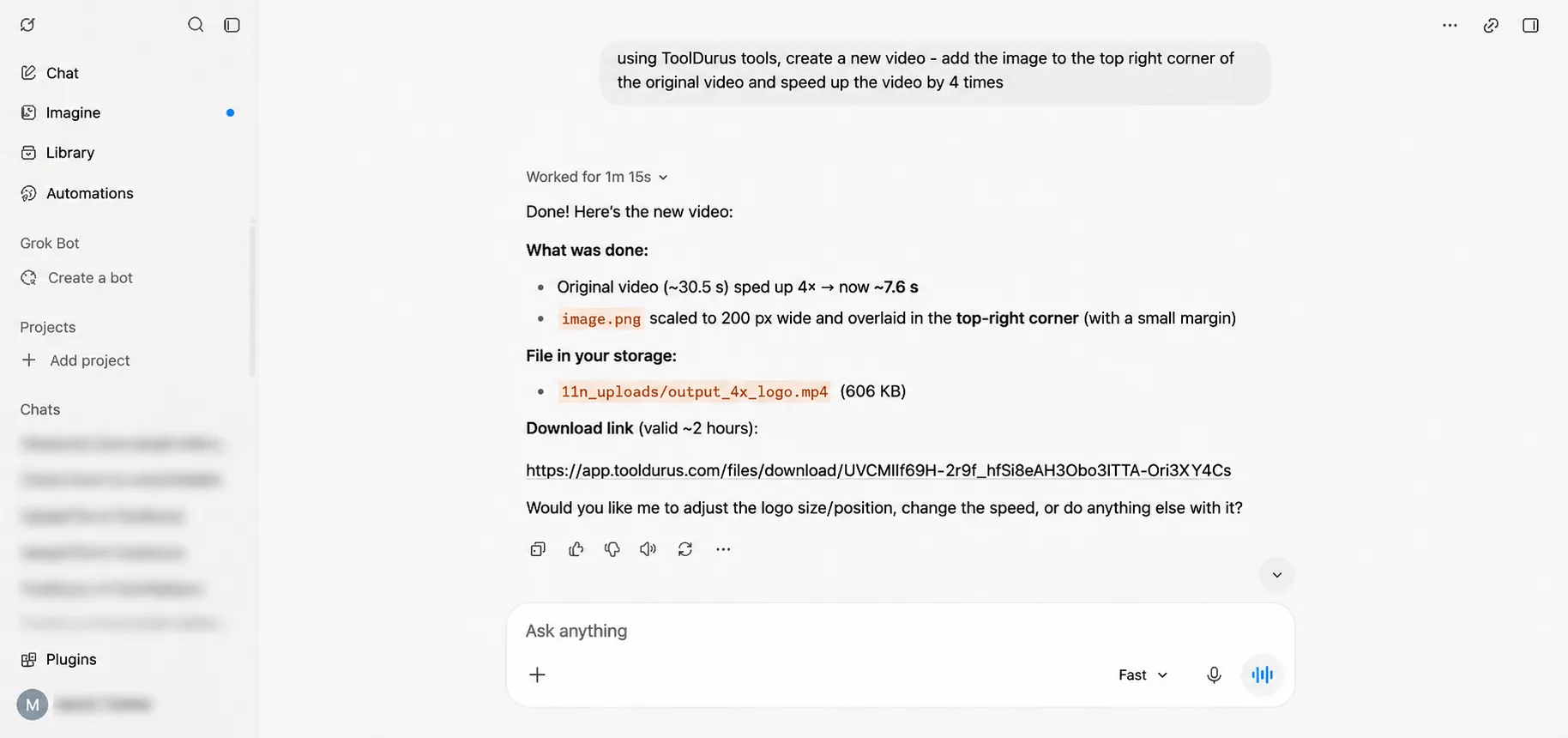
Ask Grok to overlay the image in the upper-right corner of the original video and speed up the video 4×. The example returns an edited MP4 file.
Ready to try it?
Open ToolDurus to get your personal MCP endpoint, then connect it in Grok.
Open ToolDurus